
The Labels section in the Enterpristore Helpdesk system allows administrators to create, view, edit, and delete labels. Labels are used to tag and categorize tickets for easier tracking, filtering, and reporting. Each label has a name, a slug (URL-friendly identifier), and a visibility status.
Labels Module
Labels List
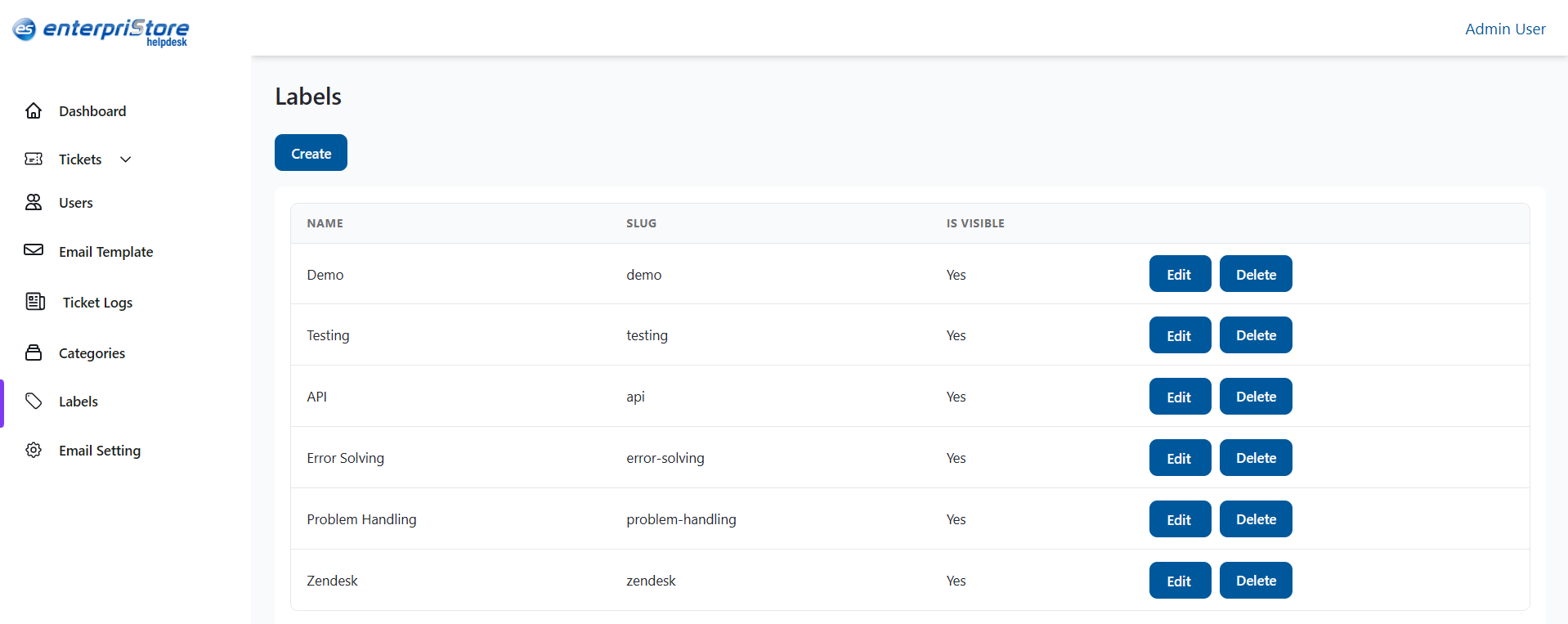
The Labels list is displayed in a table format with the following columns:
- Name – The title of the label (e.g., Demo, Testing, API, Error Solving, Problem Handling, Zendesk).
- Slug – A short, lowercase identifier used internally (e.g., demo, testing).
- Is Visible – Shows whether the label is visible to users.
- Actions – Buttons to Edit or Delete the label.
Create Label
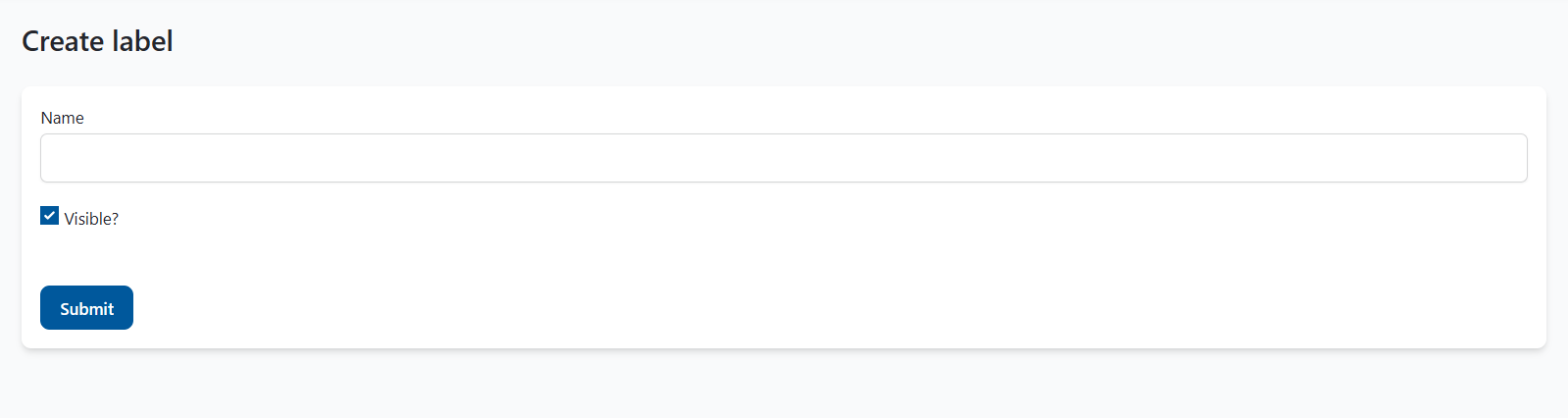
The Create button opens a form to add a new label.
Fields:
- Name – Enter the display name of the label.
- Visible? – Checkbox to make the label visible or hidden.
Action:
- Submit – Saves the new label and adds it to the list.
Edit Label
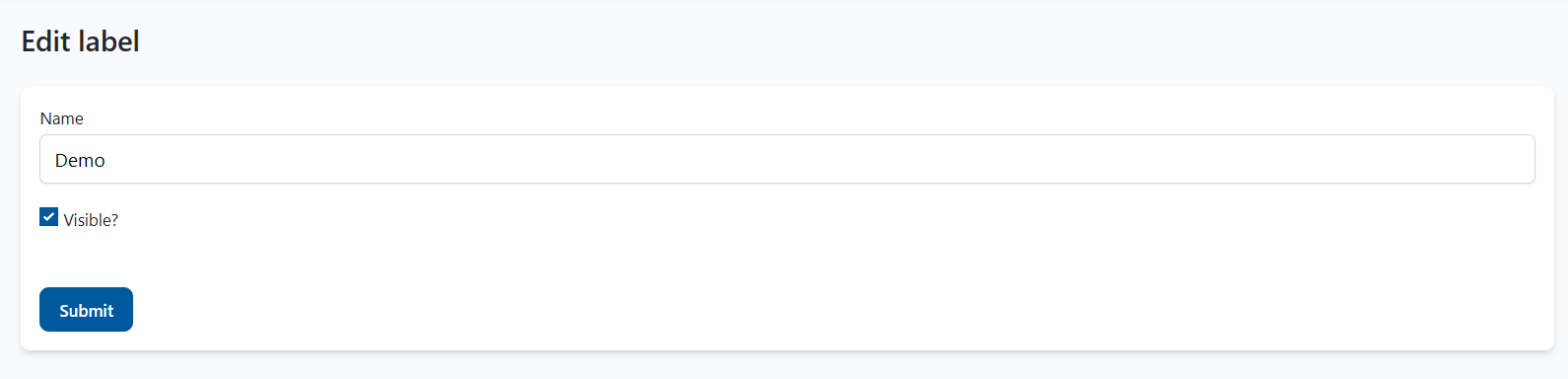
The Edit option allows updating an existing label’s details.
Fields:
- Name – Update the display name of the label.
- Visible? – Change the visibility status.
Action:
- Submit – Saves the updated label details.
Delete Label
The Delete option permanently removes a label from the system. A confirmation prompt appears before deletion to prevent accidental removal.
This completes the detailed explanation of the Labels module in the Enterpristore Helpdesk system.